Ghost
Ghost

Redeem Your Code

Enter your unique order code to securely retrieve your game credentials.

Order not found. Please check your code.
Secure & Encrypted
Instant Delivery
Verified Orders

📖 Steam Offline Account Activation Guide

Before You Start

Please read this guide carefully and follow all steps in order.

✅ Before logging into the account, you may:

  • Update Windows.
  • Install all necessary drivers.
  • Install Steam from the official website.

💡 We recommend saving this guide so you can easily access it later if needed.

Step 1. Log Into the Account

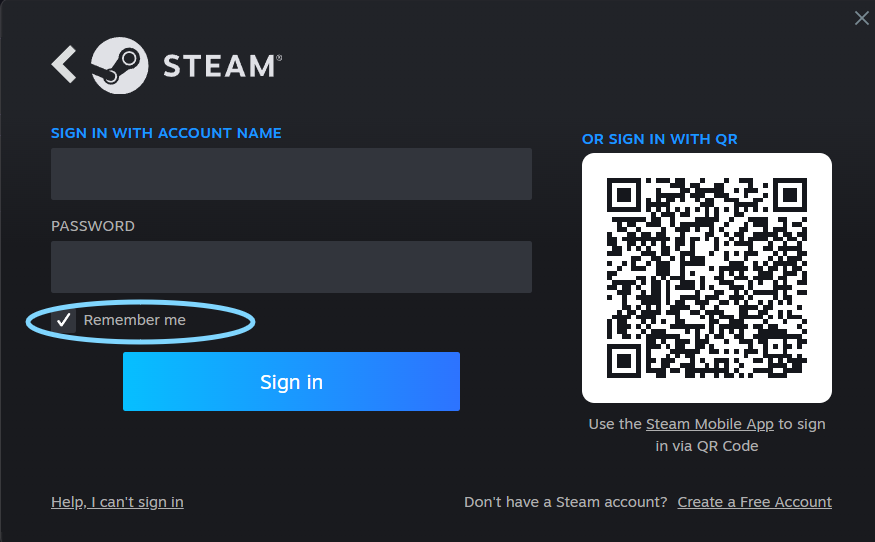
  • Launch the Steam application on your PC.
  • Log in using the provided username and password.
  • Make sure to check the 'Remember me' box when signing in.
Step 1

⚠️ Important! The Steam Guard code will NOT be sent if you sign in through the Steam website or the mobile app. You must log in using the Steam desktop application installed on your computer.

Step 2. Install the Game

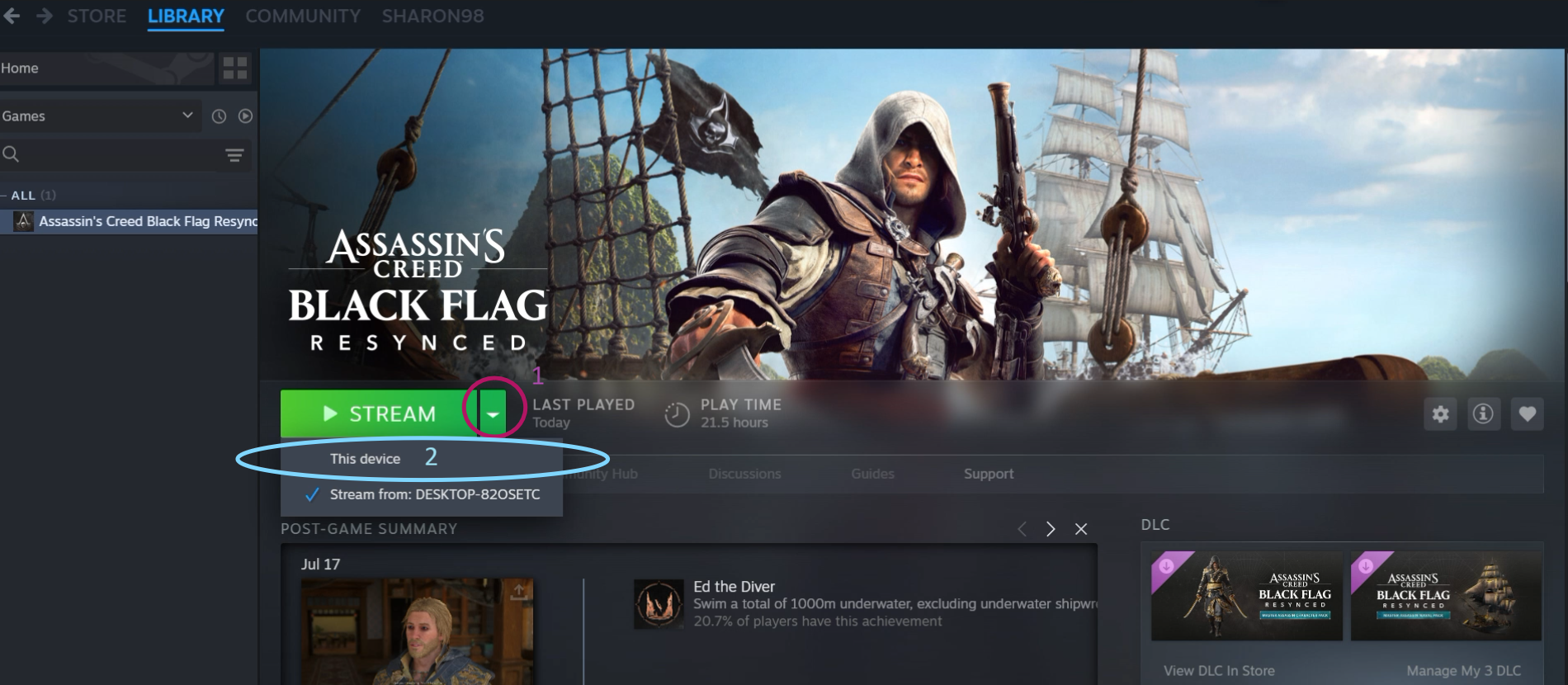
  • Find the game in your Steam Library.
  • Click 'Install' and wait until the download is fully completed.
  • If you see 'Stream' instead of 'Install': click the small arrow next to it and select 'This Computer'.
Step 2

Step 3. First Launch

After the installation is complete:

  • Launch the game while connected to the Internet.
  • Wait until the main menu appears.
  • Stay in the main menu for about 1 minute.
  • Close the game completely.

If you receive the error 'Sorry, something went wrong', simply try again later. This issue is temporary and usually resolves itself.

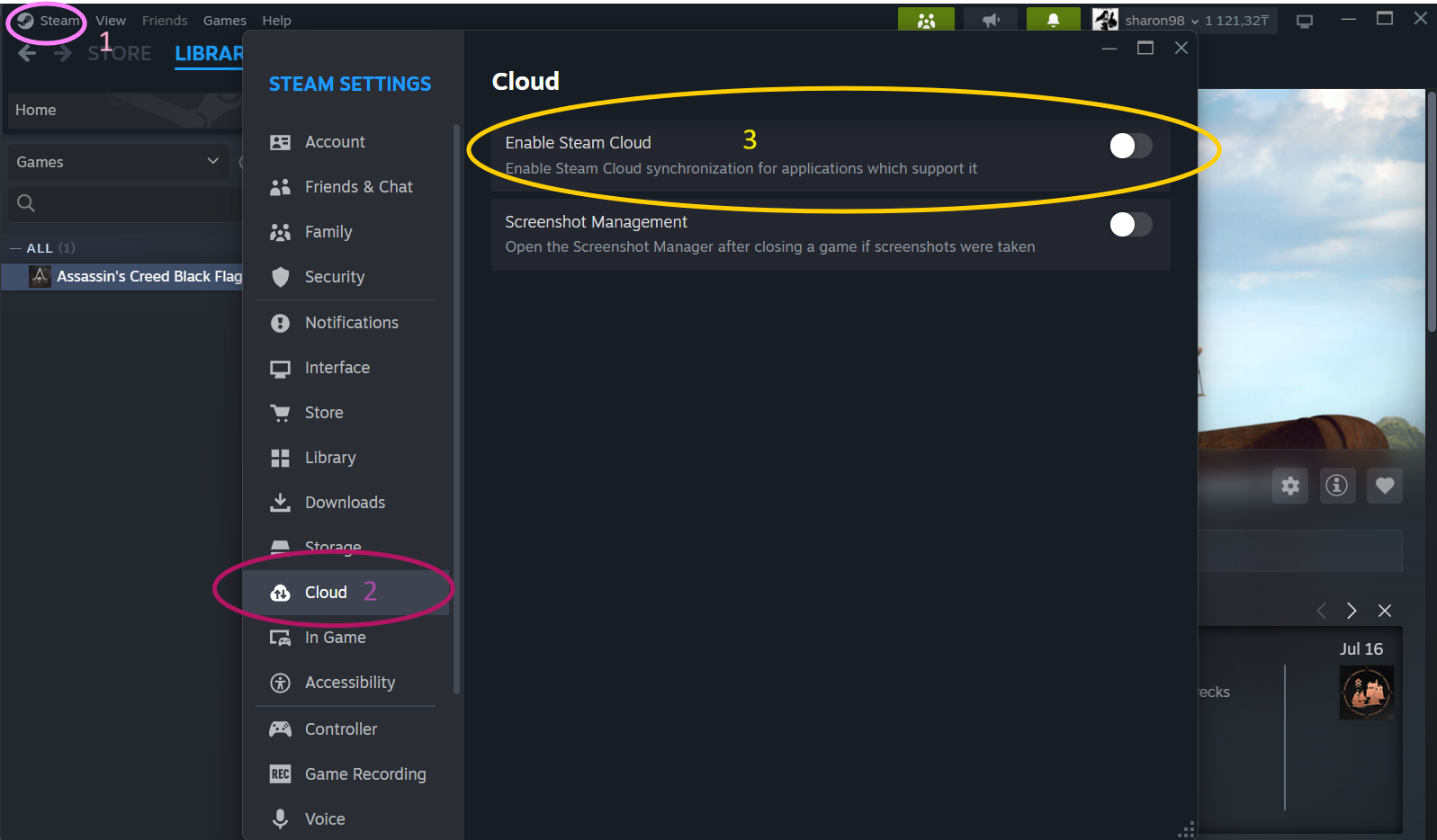
Step 4. Disable Steam Cloud (Recommended)

For better stability, we recommend disabling Steam Cloud synchronization. Steam → Settings → Cloud → Uncheck 'Enable Steam Cloud synchronization'.

Step 4

Step 5. Switch Steam to Offline Mode (Required)

This is the most important step.

⚠️ After activation, you must play only in Steam Offline Mode. ❗ Going online may cause your activation to be lost.

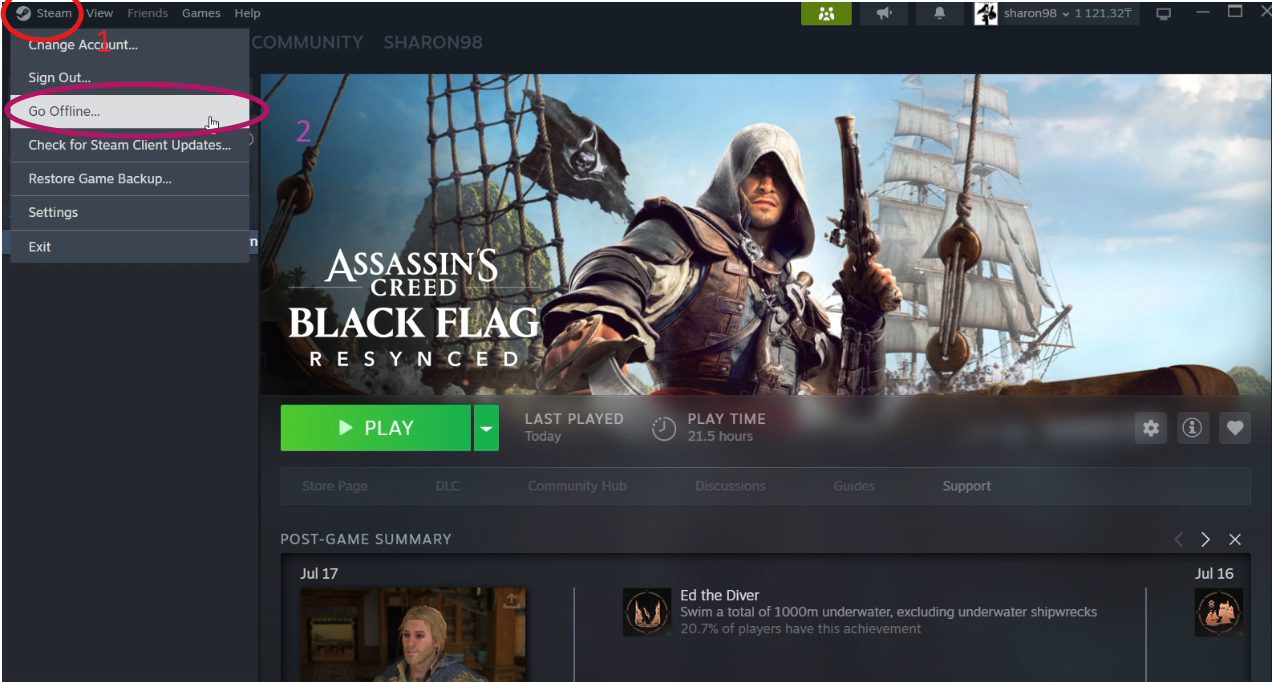
How to Enable Offline Mode:

  • Open Steam.
  • Click Steam in the top-left corner.
  • Select 'Go Offline...'.

You can now launch and enjoy the game! 😊

Step 5

How to Avoid Losing Your Activation

  • Do not change your PC hardware (CPU, motherboard). This resets the hardware ID and voids the activation.
  • Do not reinstall Windows (factory resets or BIOS updates will also void the activation).
  • Do not delete the Steam folder. Do not log out of the account (do not click 'Change Account' or 'Sign Out', simply close the application).
  • Inside the Steam client, do not click 'Sign out', otherwise you may lose/delete your activation and will need to purchase a new one to reactivate.

FAQ

❓ Steam Deck: If you are using a Steam Deck and cannot switch to offline mode in Steam, you can try enabling Airplane mode to play offline instead.

Can I activate one game on two devices? No. One activation is strictly for one PC only. You cannot use it simultaneously on multiple devices. If you want to play the same game on another device, you must purchase a new activation.

Can I change the account details or give it to someone else? Prohibited! The account is the property of the seller. Any changes to the details or transferring the account to another person is strictly forbidden and will result in the loss of activation.